How to Add Animated Captions in Premiere Pro (2 Ways)
Yes, you can make animated captions in Premiere Pro — the word-by-word, highlight-as-you-speak kind you see on Shorts, Reels and TikTok. There are two realistic routes: buy ready-made caption templates and edit them by hand, or let a panel inside Premiere write the captions and apply a ready-made style for you. Here is how each one really works, and what each costs you in time and money.
Plain subtitles are easy: Premiere can transcribe your sequence and put a caption track on the timeline. The hard part is animation — captions that pop in word by word, wipe a highlight across the spoken word, bounce, or change colour on the emphasised words. Premiere's own caption styling is built for readable subtitles, not for that look, so editors reach for one of the two methods below.
Method 1: Download caption templates from Envato Elements (or similar) and edit them by hand
This is the classic route. Marketplaces such as Envato Elements sell packs of Motion Graphics Templates — files ending in .mogrt — that Premiere can use directly. A "captions pack" usually includes a handful of animated text styles: karaoke highlights, pop-ins, boxed words and so on. You are not writing any animation yourself; you borrow someone else's design and fill in your words.
How it works, step by step
- Subscribe and download a pack
You need an account with the marketplace, and access to its full library usually means a separate subscription (or a one-off purchase per pack). Download the .mogrt files for the style you like. Some templates also ask you to install a specific font first.
- Install the template in Premiere
Open the Essential Graphics panel and install the .mogrt file from there, or drag it into your Essential Graphics library. Once installed, the style shows up in the Browse tab.
- Get a transcript
The template does not know what your video says. First you need the words — either from Premiere's own transcription (the Text panel) or from another tool — with correct timing.
- Drop the template on the timeline, one caption at a time
Drag the template onto a track above your video. Each instance is one caption: you type or paste the words into its text field, then trim the clip so it starts and ends with the speech.
- Repeat for every line of the video
A two-minute talking-head video easily has 40–60 caption lines. Each needs its own instance, its own text, its own in and out points — and a second pass to nudge the timing so the highlight lands on the right word.
- Re-do the work when you re-cut
If you trim a sentence or tighten the pacing afterwards, the captions no longer line up. Because each caption is a separate clip with its own text, you adjust them one by one.
What's good about templates
- Huge variety of looks. Marketplaces have thousands of designs, including very stylised, brand-specific ones.
- Full manual control. Every caption is an editable graphic. If you want one word bigger, red, or delayed by a few frames, you can do it.
- Works with whatever you already own. If you already pay for a marketplace subscription for music and footage, templates come with it.
What it costs you
- A separate subscription. Marketplace libraries are paid, usually monthly or yearly, and that is on top of Premiere itself.
- Lots of manual work. Typing, pasting, trimming and re-timing dozens of caption clips turns a five-minute task into an hour or more. Most of that time goes into repetitive clicking, not creative choices.
- Accuracy is on you. Templates only display the text you give them. Misheard names, wrong words and missing punctuation from your transcript end up on screen unless you proofread every line.
- Languages and fonts can bite. A template's font may not include the characters you need — accented letters, Cyrillic, Arabic, Japanese — and Premiere will quietly fall back to a different font that no longer matches the design. Check before you commit to a pack.
- Re-edits are painful. Change the cut, and you change the captions.
For a single hero video where one carefully designed caption look is part of your brand, this is a perfectly good route. For a steady flow of Shorts, Reels and YouTube videos it adds up quickly.
Method 2: Let Plentake write the captions and apply a ready-made animated style
The second route flips the process. Instead of building captions one clip at a time, you let Plentake's Captions tab — a panel that runs inside Premiere Pro — do the repetitive part, and you only choose how it should look.
Plentake builds the captions from your transcript, times them to the sequence as it stands right now, and then renders the animation for the whole video in one go. You pick from 13 ready-made animated styles — sliding pill, boxed karaoke, colour glide, typewriter, one-word bounce, highlighter, karaoke wipe, kinetic scatter, documentary and more — and the result lands on your timeline as a single transparent caption track above your footage.
What makes it different
- Captions in the language you record in. Captions follow your transcript's language automatically. Standard transcription covers around 99 languages (free, 30 minutes a month); Premium transcription — 2 credits per minute — is tuned for 18 languages when you want the highest accuracy.
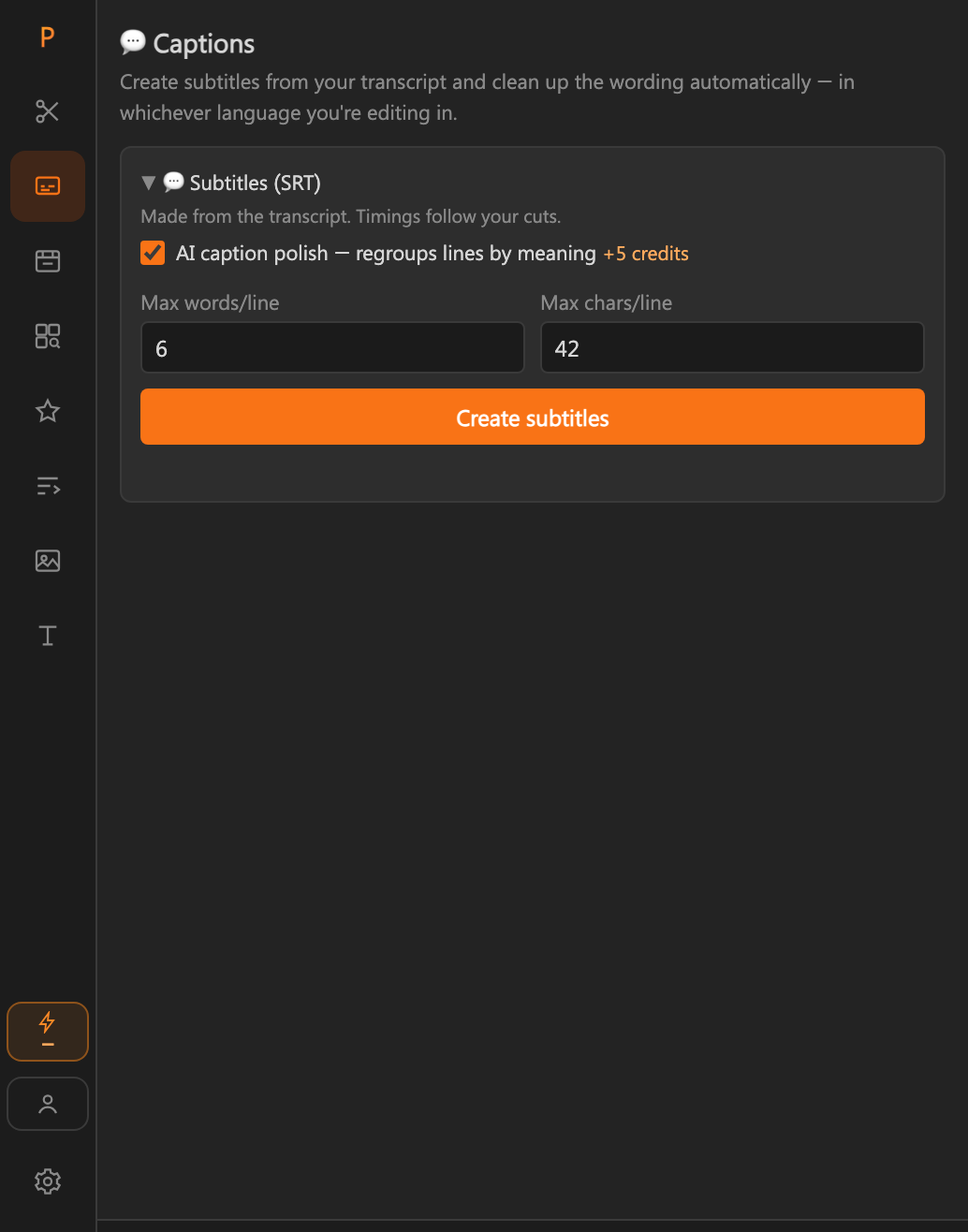
- Correct names and jargon. Add your key terms (names, brands, product words) and exact matches get your spelling. With the optional AI polish switched on, misheard versions are fixed too, and lines are regrouped by meaning so they do not end mid-thought. It changes where lines break, never what you said.
- Ready-made styles, not manual animation. Choose a style, a font from the 15 bundled ones, position, size and highlight colours. Hover a style to preview it; the live preview follows your Premiere playhead.
- Seconds, not hours. The whole video is rendered in one pass on your own computer — no upload of your footage — and placed on a new top track. Re-rendering replaces the previous version instead of stacking copies.
- No separate subscription. Plain subtitles are free. Animated captions cost 10 credits per minute of captions (5 more for the ✦ styles where AI picks which words to emphasise and adds emoji). A free account starts with 200 credits, which is enough for about 20 minutes of animated captions.
- Vertical-ready. Captions follow your sequence size, and in 9:16 sequences they sit above the area that Shorts and Reels interfaces cover.
Step by step: animated captions with Plentake
- Finish your cuts first
Captions are timed to the sequence as it is when you create them, so do your trimming first. If you cut again later, simply regenerate.
- Open the Captions tab
In Premiere go to Window → Extensions → Plentake and switch to Captions with your sequence open.
- Transcribe — or reuse a transcript
Click Transcribe this sequence. If you already transcribed it elsewhere in the panel (for example for the A-Roll Cleaner), Plentake reuses that transcript.
- Create the captions
Set how many words and characters a line can hold, add key terms, switch on AI polish if you want, and create the captions. Spot a wrong word? Open List view, find and replace it everywhere at once.
- Pick a style
In Animated captions, hover through the 13 styles, then choose font, position, size and colours.
- Create animated captions
Confirm the cost, and Plentake renders the transparent captions on your computer and places them on a new top track. Switch off the eye on the plain caption track if you only want the animated version.
Side by side
| Templates (Envato Elements etc.) | Plentake | |
|---|---|---|
| Getting the words | Separate step — transcript from Premiere or another tool | Built in, in the language you recorded in |
| Applying the animation | One template instance per caption, by hand | One style, applied to the whole video at once |
| Time for a few minutes of video | Often an hour or more | Minutes, mostly waiting for the render |
| Fixing a misheard word | Edit that caption's text field | Find and replace across all captions |
| If you re-cut the video | Adjust captions one by one | Regenerate and re-render |
| Extra subscription | Yes — a marketplace plan or pack purchase | No — free subtitles; animated captions from 10 credits per minute |
| Design freedom | Thousands of looks, fully hand-editable | 13 styles with colours, fonts, outline, shadow, speed and more |
| Best for | One-off, brand-specific caption designs | A steady flow of Shorts, Reels and YouTube videos |
Which one should you pick?
If you publish one polished piece now and then and want a very specific caption design, a template pack you tweak by hand is a fine choice — you control every detail and the time cost is a one-off. If you caption videos regularly, in several languages, or want the captions to follow every re-cut without redoing them, automating the repetitive part is what saves the hours. You can also mix: use Plentake for the accurate captions and the first animated pass, then fine-tune a few moments by hand in Premiere.
The bottom line
Animated captions are not a Premiere secret reserved for motion designers. They are either a templates-and-manual-labour job, or a one-click job if the captions are written and animated for you. Pick the route that matches how many videos you make — and how much of your evening you want to spend dragging caption clips around.
Caption your next video in minutes
Plain subtitles in any language are free, and a free account starts with 200 credits — enough to try animated captions on about 20 minutes of video. No card needed.
Try Plentake free